

The short version
You start it
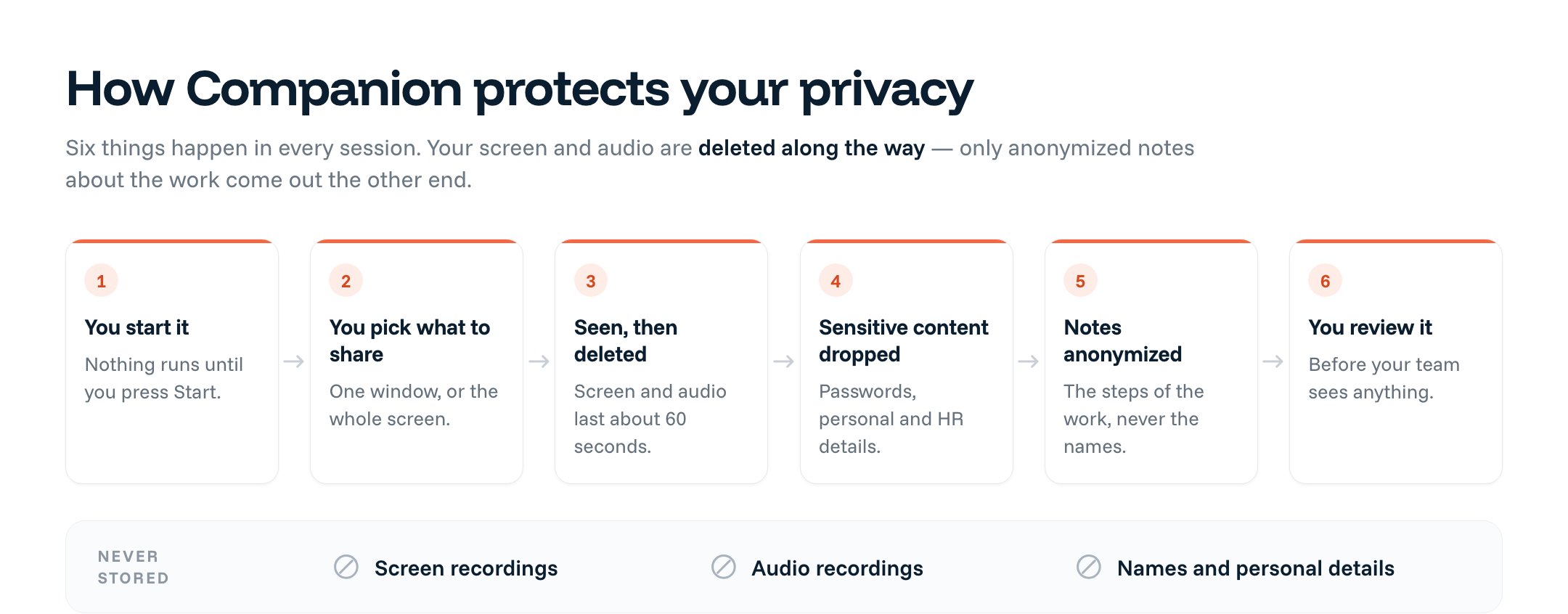
Companion never starts on its own. Nothing is captured until you press Start.
You can see it and stop it
While a session runs, you always see that it is on. You can pause or stop it at any time.
No recordings are kept
Your screen and your audio are never stored. No video, no images, no sound files.
Sensitive content is dropped
Passwords, personal details, and HR or legal matters are filtered out before anything is written.
Notes are anonymized
What is kept describes the steps of the work, not the person doing it.
Nothing trains AI models
Your work is used to do the job you asked for. It never teaches an AI model, ours or anyone else’s.
How a session works, step by step
You decide when it runs
It only runs in a session you start
Companion only works during a session that you start. You can pause or end the session whenever you want.
Nothing runs in the background
Companion is just a web page you open. Nothing is installed on your computer, and nothing runs in the background.
You choose what to share
Your browser asks for permission first. You pick what Companion can see — a single window, or your whole screen.
You always see when it is on
An indicator stays on screen for the whole session. It reminds you that capture is active, and lets you pause or stop.
When no session is running, Companion sees nothing. Not your screen, not your audio. Nothing.
What Companion sees — and what it keeps
What it sees while you work
- It looks at your screen and listens to audio to follow what you’re working on.
- It takes about one screen image each second. Those images and the audio are held for about 60 seconds — just long enough to understand the step you’re doing — then deleted automatically.
- No screen recordings or audio recordings are ever stored.
What it keeps
- Short written notes about the steps of your work — for example, “opened the invoice, checked the amount, approved it.”
- Anything personally identifiable — about you, your customers, or your company — is left out of the notes.
- Background chatter, meetings, and casual conversations don’t end up in your notes.
What is never saved at all
- Anything personal or sensitive. For example:
- Your personal life — health, family, finances
- Job searches or conversations with recruiters
- Private conversations about colleagues or HR matters
- Passwords and login details
- Legal advice and anything under legal privilege
- Confidential business plans, such as an acquisition
- When in doubt, Companion errs on the side of leaving it out.
The AI services Companion uses don’t keep your information, and they never learn from it.
What your session produces
Each session turns into four things. All four describe the work, not the worker.
Your organization sees how processes work — the steps, the tools, the friction points. The goal is to fix slow and frustrating processes, not to evaluate people. When the painful, repetitive parts of work get fixed, you get more time for the strategic, high-value work that matters. That’s the outcome we’re here to drive.
Your session is linked to your account, so your workspace can control who sees what. The notes themselves stay anonymized — they describe the steps, not the person.
You review it, and you can delete it
- After each session, you see everything Companion noted.
- You can remove or edit anything before it’s saved.
- Insights from your session are only shared with your team if you choose to share them.
- You can delete your data at any time — uploads, recordings, and everything Within made from them.
When other people are around
Companion works best when you work alone. If other people join, or you can be heard on a call, tell them Companion is on. Pause the session if anyone asks you to. You can say this honestly, because it is true:I am using Within Companion, an AI tool. No audio or video is recorded or stored, only anonymized process notes are kept. Let me know if you’d like me to pause it.
Within recommends that you tell people whenever they might be captured — in every country, whatever the local minimum is. Even when other people are audible, their audio and video are never stored. Only anonymized notes about the process are kept.
Why Companion keeps no recording, but Interviewer does
Within captures process knowledge in three ways. What each one keeps is different, and that is on purpose.
For Interviewer and Intake, what is kept stays in your workspace, under your organization’s access controls, and you can delete it on demand.
Common questions
Is this always-on employee monitoring?
Is this always-on employee monitoring?
No. Companion only runs in a session you start. You can see it while it runs, and you can stop it at any time.
Do I have to install monitoring software?
Do I have to install monitoring software?
No. Companion is a web page you open in your browser. Nothing is installed on your computer.
Are videos, screenshots, or audio stored?
Are videos, screenshots, or audio stored?
No. Screen images are held for about 60 seconds and then deleted. No video, images, or audio are stored.
What if a password or personal detail appears on my screen?
What if a password or personal detail appears on my screen?
Companion filters it out before anything is written. The filter is deliberately cautious: if content looks like it might be sensitive, Companion drops it.
Will my manager see how I performed?
Will my manager see how I performed?
No. The outputs describe the process, not the person. They are anonymized and focused on how work flows.
Will our data train AI models?
Will our data train AI models?
No. Your data is used only to do the task you asked for. The AI providers Within uses keep nothing and train on nothing.
Could another company's data mix with ours?
Could another company's data mix with ours?
No. Each workspace is kept separate. Access is controlled per workspace, and data is encrypted while it moves and while it is stored.
Where to go next
Running your first Companion session
Set up and run your first session, then review and submit what it captured.
Best practices for narration and pacing
How to narrate your work — including what you don’t need to say out loud.